Game UI/UX Design: Why Good Interfaces Go Unnoticed
HUD types, Dead Space's on-body health bar, Red Dead Redemption 2's contextual HUD, Fitts's law, and mobile touch design: the basics of game UI/UX.
UI is rarely praised in game reviews. Clumsy UI, on the other hand, gets criticized quickly. Complaints like "the menus are too deep," "my finger covers the buttons," and "I can't tell how much health I have left" wear players out regardless of how fun the game itself is. Well-made UI is invisible like air; only badly made UI stands out.
In this post, we start with how game UI (user interface) and UX (user experience) differ, then look at the various ways of putting information on screen, the choices real games have made, and the principles we follow as a small studio making mobile games.
How Are UI and UX Different?
The two terms are often used together, but they cover different scopes.
- UI (User Interface) is what players see and touch. Health bars, minimaps, menu buttons, inventory windows, fonts, and icons belong here.
- UX (User Experience) is the entire experience players go through across all of that. How many taps it takes from launching the game to starting the first round, how long players wander before finding the item they want, and whether they can undo an accidental tap are all UX issues.
Even if you make a pretty button (UI), the UX is bad if that button is hidden four levels deep in a menu. Conversely, even a rough-looking screen can have good UX if the needed information appears at the moment it's needed. Game UI/UX design can ultimately be summed up as "delivering what the player needs to know right now, with the least interference."
HUD: The Dashboard on the Screen
The information displayed overlaid on top of the game screen is called the HUD (heads-up display). The name comes from devices that project information onto the windshield of an airplane cockpit. Elements commonly found in a HUD include the following.
| Element | Role | Typical form |
|---|---|---|
| Health and lives | How much danger you're in now | Health bar, hearts, numbers |
| Weapons and ammo | What you can do now | Magazine count, weapon icon |
| Progress | How far you've come | Score, money, lap count, level |
| Minimap and compass | Where to go | Radar, objective arrow |
| Contextual info | What's needed only right now | Prompts like "A - Open door" |
| Crosshair | Where you're aiming | Crosshair, cursor |
The same information can be presented in many ways. Health can be shown as a depleting bar, as in Tekken or Street Fighter, or as a number of hearts, as in The Legend of Zelda. Gears of War didn't show health at all times; instead, a red cog-shaped emblem appeared on screen when you were hurt, growing more intense the more damage you took.
Inside the World, Not Outside the Screen: Diegetic UI
Most HUDs are "non-diegetic," meaning the information is seen only by the player and not by characters in the game world. In contrast, blending information into objects within the game world is called "diegetic UI."
The most frequently cited example is Dead Space (2008). Protagonist Isaac's health is shown as a glowing bar running down the spine of his suit, and the ammo count appears above the gun when he raises his weapon. Maps, inventory, the shop, and even video calls are all shown as in-game holograms. Because in-game time doesn't stop when you open a menu, the tension never lets up, even while you're digging through your pack aboard a monster-infested spaceship. At release, critics praised the complete absence of a conventional HUD.
Diegetic UI increases immersion, but it's not a cure-all. It worked in Dead Space because the game is third-person, so the protagonist's back is always on screen. Using the same method in a first-person game can create the inconvenience of having to turn your head to see information. There's also the approach of showing injury through the character's appearance, such as limping or panting, as in Resident Evil 2, but it has the drawback of making exact values hard to know.
As an extreme example, ICO has no HUD at all and conveys information only through the environment and sound. In a game with a calm atmosphere, leaving the screen empty becomes design in itself.
Information That Appears Only When Needed
A widely used approach these days is the "contextual (dynamic) HUD." Instead of displaying all information at all times, it shows only what's needed right now.
In Red Dead Redemption 2, when you're riding around on horseback, only the minimap and roughly your horse's health are visible, but once combat begins, ammo, the protagonist's health and stamina, the special ability gauge, and the horse's status all appear together. A clean screen is great for enjoying the scenery, and in emergencies all the needed information comes together.
Some games hand the choice to the player. Horizon Zero Dawn lets you choose for each HUD element whether it's "always shown," "shown only when needed," or "hidden," and World of Warcraft allows user modifications so extensively that the interface can be heavily reworked with scripts.
The principle to take away is simple: not all information is always important, and what's important depends on the situation and the player.
Laws of Hand and Eye: Good UX Needs Comfortable Controls
One law often cited in UX is Fitts's law. Proposed by psychologist Paul Fitts in a 1954 paper, it states that the time it takes to point at a target is determined by the distance to the target and the target's size. Simply put, far, small buttons are hard to press, and near, large buttons are easy to press.
It seems obvious, but mobile games frequently have screens that break this law. Here are the items we check when designing screens.
- Put frequently pressed buttons where the thumb reaches. When holding a phone with both hands, the lower left and right sides of the screen are most comfortable.
- Put dangerous buttons far away, with one more confirmation. If "Buy" and "Close" sit right next to each other, mistakes happen.
- Don't put important information where the finger covers it. A number directly above the touching finger can't be seen.
- Give immediate feedback that a press registered. The button should depress slightly or make a sound so players don't press twice.
There are cases where control design changed the whole experience. During Dead Space's development, a quick-turn feature was reportedly added and removed several times, because when it was put on the remaining button, test players ended up turning around by accident in dangerous moments. Even a good feature becomes a hindrance in the wrong place.
Fundamentals for a Readable Screen
There are fundamentals to take care of before flashy effects.
- Hierarchy: The most important information should catch the eye first. Set the order with size, color, and position.
- Consistency: The same color should mean the same thing. If red means danger in one place and a discount in another, players get confused.
- Contrast and legibility: Avoid white text on bright backgrounds and text that's too small. Checking directly on a small phone screen is the most accurate.
- Don't rely on color alone: Some players have difficulty distinguishing colors, so make things distinguishable by shape or icon as well as color.
- Feedback: Immediately show what was done and what the result was. When the score goes up, the number pops; when you take damage, the edges of the screen turn red.
When Information Becomes the Game
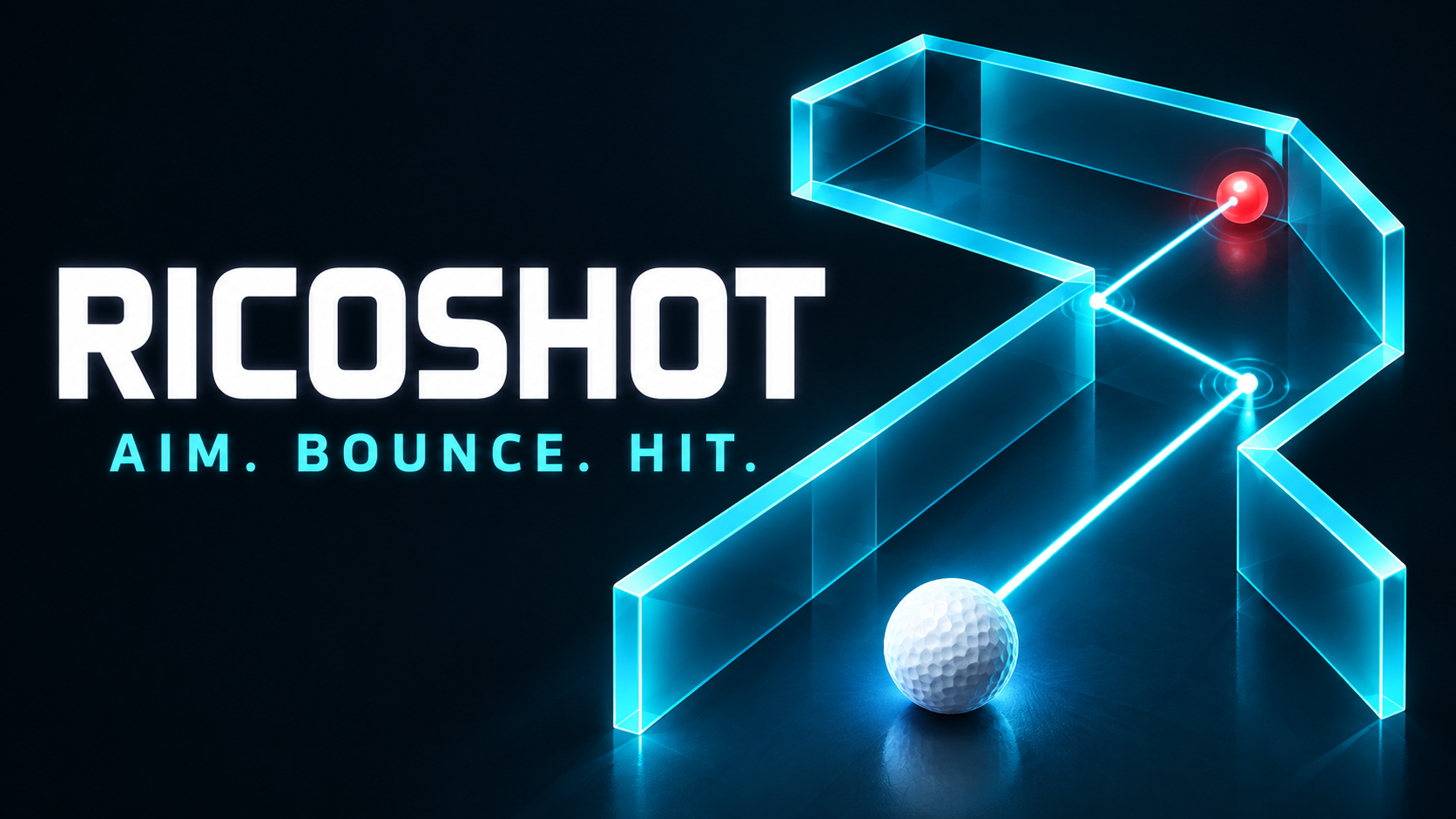
What information you show can even change the nature of the game itself. Our RICOSHOT: Golf Puzzle shows the predicted trajectory of the ball bouncing off walls before you hit it. Because of this single line, the game becomes not golf played by feel but a puzzle of calculating angles. Had this information been hidden, the same levels would have become an entirely different game. When designing UI, "what should we show?" is effectively the same question as "what game are we making?"
Closing Thoughts
The best way to judge good game UI/UX is to hand the game to someone playing it for the first time and say nothing. Watching where their finger hesitates and what they search the screen for shows you what to fix. If players can focus only on the game without being conscious of the screen, the UI has done its job.